
Audit Google Business Profile Categories in 10 Minutes for SMBs
Your primary category carries the most ranking weight of any single setting on your Google Business Profile, so pick the one that matches your core revenue source exactly, not the closest broad label. Add up to nine secondary categories, but stop at a few that reflect services you actually provide. Everything else in this guide is about executing that decision correctly and checking your work.
TL;DR:
- Choosing the most specific category that matches your top revenue service is crucial, as it directly influences local search visibility and feature eligibility.
- Using up to four secondary categories that accurately reflect current offerings helps avoid diluting your profile’s relevance and maintains a sharp topical focus.
- Regularly reviewing categories at least once a year, especially after launching new services or experiencing visibility drops, ensures your profile stays aligned with your business.
- Verifying category-specific features like booking buttons or menus after changes confirms your selections support your intended customer interactions.
- A detailed change log and careful testing over four to eight weeks are recommended to measure the impact of category adjustments on impressions, calls, and bookings.
Table of Contents
- What Are Google Business Profile Categories?
- How Categories Affect Local Rankings and Profile Features
- How to Choose Your Primary and Secondary Categories
- Category-Specific Features Worth Knowing
- Finding the Right Category: Tools and Methods
- Where to Find the Complete Category List
- Common Category Mistakes and a Quick Audit Checklist
- How Often Should You Review Your Categories?
- A Practical Audit Template You Can Run This Week
- What I’ve Seen Work (and What Doesn’t)
- Get a Free Business Profile Category Audit
- Sources
- FAQ
What Are Google Business Profile Categories?
A Google Business Profile category is a label pulled from a fixed list that Google maintains and updates on its own schedule. You don’t type in a category. You search Google’s existing taxonomy and select the closest match, and that restriction is the whole point: it keeps businesses from self-describing in ways that confuse search results.
Every profile gets one primary category, which tells Google the main thing your business does and carries the most weight in local ranking. You can then add secondary categories, with several allowed, to cover additional services or departments without diluting the primary signal. Google’s own guidance is blunt about this: choose the most specific category available. “Nail salon” beats “Salon.” “Personal injury attorney” beats “Attorney.” Specificity isn’t just tidier. It’s how Google matches your listing to the exact intent behind a search.
Behind the dashboard’s simple search box sits a more technical structure. Each category has a stable categoryId and a human-readable displayName, and developers can pull the entire list programmatically through the categories.list API endpoint, which requires a regionCode and languageCode to return results. That distinction matters if you manage more than one location:
- The dashboard is built for one owner picking categories by typing and scanning suggestions.
- The API is built for scale, letting you assign identical categories across dozens or hundreds of locations without manual drift.
- Category records also carry
serviceTypesandmoreHoursTypesmetadata, which hint at which profile features a given category unlocks. - Google periodically revises the taxonomy itself, adding or retiring categories as industries change.
Small business owners rarely touch the API. But knowing it exists explains why category names in the dashboard sometimes feel oddly specific, like “Mediterranean restaurant” instead of just “Restaurant.” Someone at Google built that taxonomy with query matching in mind, not tidy simplicity.
How Categories Affect Local Rankings and Profile Features
Categories function as a gatekeeper. Before Google ever weighs your reviews, your proximity, or your website’s content, it checks whether your listed categories match the query someone typed. Get that match wrong, and none of your other local SEO work gets a chance to matter.
That gatekeeping shows up in two distinct ways. First, category accuracy directly affects whether your profile appears in the Local Pack, the map and three-listing block that shows up for searches like “plumber near me” or “divorce attorney downtown.” A business categorized as “Attorney” instead of “Divorce attorney” is competing in a much wider, less relevant pool, and it shows in impression data. Second, categories unlock specific profile features that have nothing to do with ranking directly but everything to do with conversion. Restaurants with the right category can display menus and ordering links. Health and beauty businesses can show a booking button. Hotels can surface amenities and star ratings.
Categories determine eligibility, not just relevance. A business that’s fundamentally a bakery but categorized as “Restaurant” isn’t just ranking for the wrong queries. It’s also missing out on features Google reserves for bakery-specific listings. According to Uberall’s analysis of Google’s category and attribute system, the category you choose interacts with dozens of other local ranking signals, but it’s the one signal that sets the boundaries for everything else. You can have flawless reviews and a fast website and still be invisible for your best-fit searches if the category is wrong.
A Business Profile itself is free to create and manage, and Google frames accurate category data as one of the main levers for improving how customers discover you. That framing isn’t marketing fluff. It’s the practical reason category selection deserves more attention than most owners give it.
How to Choose Your Primary and Secondary Categories
Most owners treat category selection as a five-second dropdown decision. It shouldn’t be. Here’s a repeatable process that takes maybe twenty minutes and prevents months of invisible listing performance.
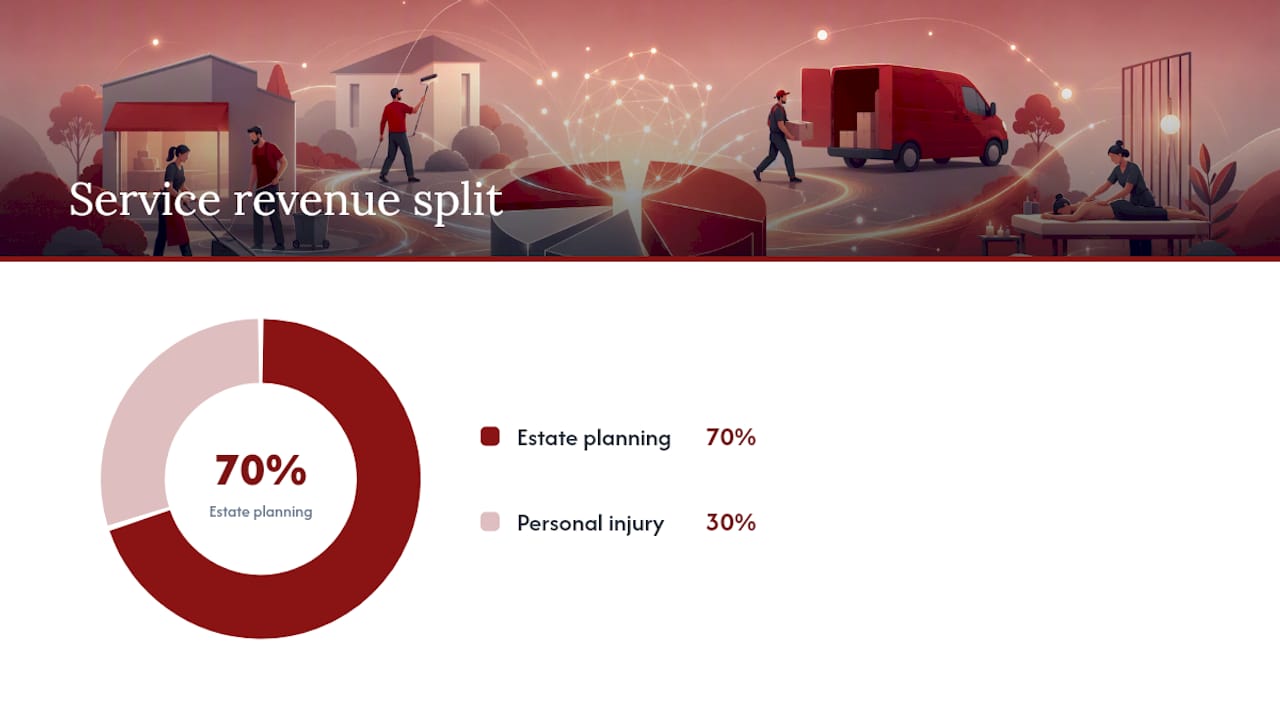
- List every service that generates real revenue, ranked by dollar volume, not by what you personally find most interesting about the business. A law firm that does 70% estate planning and 30% personal injury work should treat estate planning as the anchor, even if the owner enjoys litigation more.
- Search the category list inside your dashboard for the most specific match to your top revenue driver. Type broad terms first (“dentist,” “gym,” “electrician”) and let the autocomplete suggestions narrow toward specific variants. Resist the urge to stop at the first reasonable-sounding option.
- Set that specific category as primary, not a broader parent category. If “Cosmetic dentist” exists and matches your practice, it beats “Dentist” every time.
- Add two to four secondary categories that reflect services you genuinely offer today, not services you hope to offer someday or once offered years ago. Practitioner guidance from Uberall recommends staying well under the nine-category cap specifically because loosely related secondaries dilute your topical focus rather than sharpening it.
- Validate the change inside the dashboard by checking whether category-specific features (booking buttons, menu links, service lists) appear after saving. If a feature you expected doesn’t show up, the category you picked probably doesn’t support it.
- Run a handful of live searches using the exact phrases customers would type, from a device not signed in to your business account, and note whether your listing appears in the Local Pack for those terms.
- Log the change with the date, the old category, the new category, and what you observed in the days after. This becomes your rollback reference if something goes sideways.
Pro Tip: Keep a simple spreadsheet with three columns: category name, date changed, and one-line note on feature or ranking impact. Six months from now, when a client or a co-owner asks “why did we pick this category,” you’ll have an answer instead of a guess.
The audit script is short on purpose. Ask yourself: does my primary category match my single highest-revenue service? Do my secondaries reflect real, current offerings? Did the features I expected actually appear? If any answer is no, you have a fix to make before you move to anything else in your local SEO checklist.
Category-Specific Features Worth Knowing
Category choice isn’t only about who finds you. It’s about what your profile can visually display once someone does. Google ties an entire layer of profile functionality to category selection, and most owners never realize they’re missing features simply because their category is one notch too generic.
- Restaurants categorized correctly can show a linked menu, third-party ordering integrations, and a reservation button, features that never appear on a generically categorized food business.
- Health and beauty businesses, from salons to spas to massage studios, gain access to a booking button and structured service lists that let customers see pricing and availability before calling.
- Hotels and lodging categories unlock amenity icons (pool, parking, pet-friendly) and prominent star rating displays that generic “lodging” listings don’t get.
- Professional services, including law firms, accountants, and consultants, get structured service-type listings, though the visual treatment tends to be more understated than the consumer-facing verticals above.
The pattern across all four examples is consistent. Google reserves visual real estate for categories where it has built specific structured data support. Choosing a near-match category instead of the exact one often means losing that feature entirely, not just getting a slightly less relevant label.
Finding the Right Category: Tools and Methods
Type a broad term and Google surfaces its closest matches in the taxonomy, ranked roughly by relevance. The trick is not accepting the first suggestion. Scroll the full list, because Google often has a narrower variant sitting two or three rows down.
- Dashboard search works well for single-location businesses and gives you an immediate preview of how the category name will read to customers.
- The categories.list API is the right tool for agencies and multi-location brands that need to confirm the exact
categoryIdanddisplayNamecombination before pushing bulk updates, since the endpoint accepts region and language parameters and returns structured results developers can script against. - Third-party category indexers maintain searchable lists outside Google’s own interface, which can be faster to browse, but always verify the list’s last update date since Google revises the taxonomy periodically and a stale third-party list can suggest categories that no longer exist.
- Competitor inspection is fair game and doesn’t require naming anyone. Open a competitor’s Maps listing, scroll to the business information section, and note which category displays. It won’t show secondaries, but the visible primary category tells you what Google considers the standard for that niche in your market.
None of these methods replace judgment. A tool can show you what categories exist. Only you know which one actually matches how your business makes money.
Where to Find the Complete Category List
Google doesn’t publish a single downloadable master list you can browse start to finish, which surprises a lot of business owners expecting a PDF. Instead, the list lives inside the search functionality of the dashboard itself and inside the API response.
For most single-location owners, Google’s Business Profile help documentation on managing categories is the right starting point. It explains the primary versus secondary structure and links directly into the dashboard tool where the actual selection happens.
For developers, agencies, or anyone managing multiple locations, the categories.list API method returns the full taxonomy for a given region and language, and the related categories REST resource documentation shows the additional serviceTypes and moreHoursTypes fields attached to many categories, useful when you’re planning which departments or seasonal hours a category will support.
Third-party tools and blogs that maintain searchable category lists can be genuinely useful for browsing options quickly, especially when you’re comparing several near-matches side by side. Treat them as a discovery aid, not a source of truth. Always confirm your final choice exists and reads exactly as expected inside your own dashboard before saving, since a third-party list published even a year ago may already be missing recent additions or renamings.
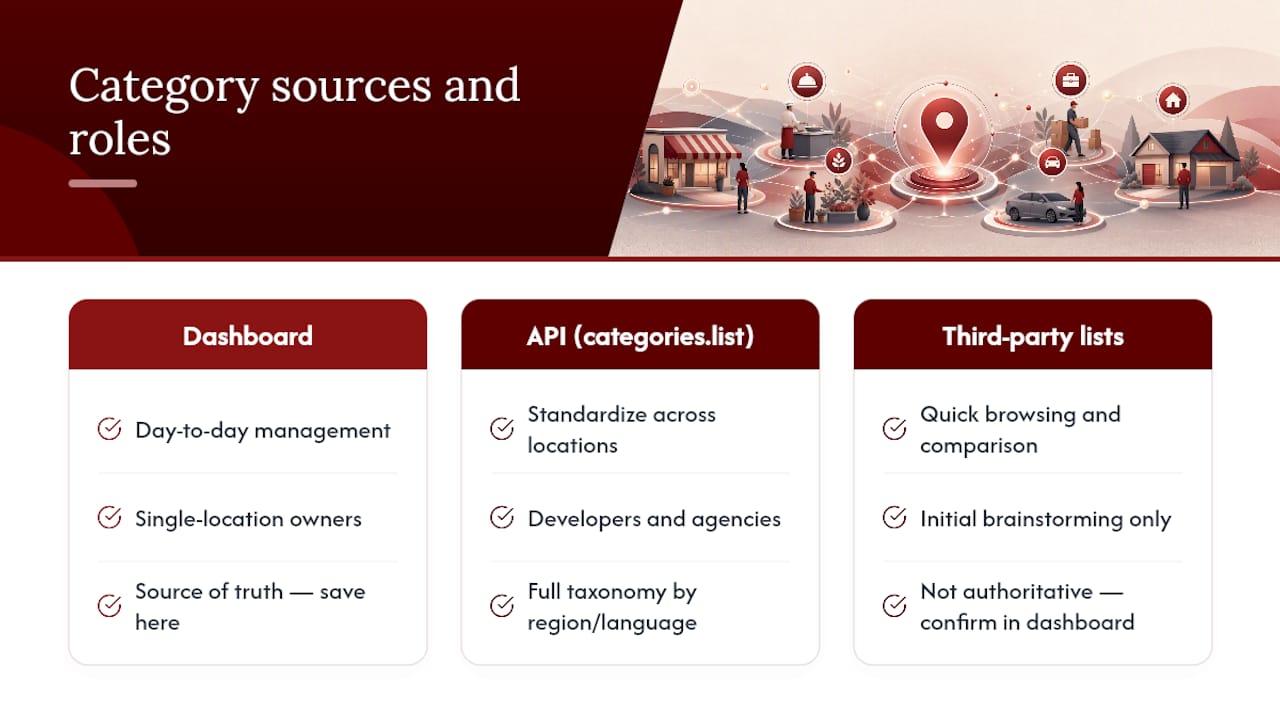
Use the dashboard for day-to-day management, the API when you’re standardizing categories across locations, and third-party lists only for the initial brainstorming phase.
Common Category Mistakes and a Quick Audit Checklist
Most category problems fall into a small number of repeatable errors, and every one of them is easy to check in under ten minutes.
- Choosing a generic category when a specific one exists. “Restaurant” instead of “Thai restaurant,” “Store” instead of “Jewelry store.” This is the single most common mistake and the easiest to fix.
- Creating separate categories for internal departments that don’t need public-facing profiles. A hospital doesn’t need a secondary category for its billing department. If a department doesn’t independently serve walk-in or call-in customers, it usually shouldn’t get its own category treatment at all.
- Piling on secondary categories past the point of relevance. Google allows nine, but practitioner consensus lands closer to two to four as the practical ceiling before secondaries start working against your primary signal instead of supporting it.
- Never revisiting categories after the initial setup. Businesses evolve. Categories chosen five years ago at launch rarely reflect what the business actually sells today.
Pro Tip: Run this four-question audit quarterly: Does the primary category match your top revenue service? Are all secondaries currently accurate? Do expected features (booking, menu, amenities) actually display? Have Local Pack impressions moved since the last change? Four minutes, four answers, and you’ll catch drift before it costs you visibility.
The fix for nearly every mistake on this list is the same: strip the profile back to categories that are true, specific, and current, then rebuild from there rather than layering more labels on top of an already-confused foundation.
How Often Should You Review Your Categories?
Once a year, at minimum. That’s the baseline Google itself suggests given how often the underlying taxonomy shifts and how often businesses quietly add or drop services without ever touching their profile settings.
Two triggers should move that review up the calendar immediately. Launching a genuinely new service line is one, since your current categories may no longer capture what you do. The second is any noticeable, unexplained dip in local search visibility, since a category mismatch is one of the more common and more fixable culprits behind it.
One practical wrinkle worth planning around: changing your primary category can sometimes trigger Google’s automated re-verification process. That’s not a reason to avoid necessary changes, but it is a reason to keep your verification documents accessible and to expect a short delay before the change fully reflects across Maps and Search. Keep a simple change log, noting the date, the old and new category, and what happened to impressions and calls in the following weeks. That log turns “did that category change actually help” from a guess into a documented answer.
A Practical Audit Template You Can Run This Week
Agencies that handle Business Profile audits for a living tend to run the same sequence regardless of industry, because the logic holds whether the client sells tacos or handles tax law.
- Map revenue. List services by dollar contribution, not personal preference.
- Map categories. Search the dashboard for the closest specific match to each revenue-generating service.
- Select the primary. It should mirror your single highest-revenue service, full stop.
- Choose two to four secondaries. Anything beyond that needs a strong justification for staying.
- Verify features. Confirm booking buttons, menus, or amenity displays actually appear after saving.
- Monitor. Track Local Pack impressions, direct calls, and booking or website clicks for four to eight weeks after any change.
The KPIs that matter most in that monitoring window are map impressions, the volume of “near me” style local searches your listing appears for, direct call counts sourced from the profile, and booking or ordering clicks where the category supports them. A category change that doesn’t move at least one of those numbers within two months probably wasn’t the right change, or wasn’t given enough time to register.
What I’ve Seen Work (and What Doesn’t)
Broader categories sometimes give a brand-new listing a short-lived visibility bump, because a wider net catches more search queries while Google is still figuring out how to rank you. It’s tempting to read that early bump as proof that broad is better. It isn’t. Once a listing has enough review volume and search history for Google to trust its relevance signals, specific categories consistently outperform broad ones for the queries that actually convert.
The mistake I see most often isn’t picking the wrong category outright. It’s changing three things at once, a new primary, two new secondaries, and a batch of new photos, then having no idea which change moved the needle when impressions shift two weeks later. Test one variable at a time. Give it four to eight weeks before drawing conclusions, since local search data is noisy week to week and a single change rarely shows a clean signal in less than a month.
Document every edit, even the ones that seem trivial. Rollback matters more than people expect. If a category change coincides with a ranking drop and you don’t have a record of exactly what changed and when, you’re troubleshooting blind. A one-line log entry costs thirty seconds and saves hours of guesswork later. For a strategy that touches something as foundational as how Google classifies your business, that discipline is the difference between learning from a change and just hoping it worked.
— Will
Get a Free Business Profile Category Audit
An alternative to guessing your way through Google’s category taxonomy alone is to get a practitioner review that maps your actual revenue services to the most specific matching categories, checks which profile features you’re missing, and flags any secondaries doing more harm than good.
The audit follows the same sequence covered in this guide: revenue mapping, primary category selection, a tight set of two to four secondaries, and a feature check to confirm bookings, menus, or amenities display correctly once changes go live. It pairs naturally with Dot Xero’s broader local SEO services, since category accuracy is only one input in local ranking and the rest of your profile and site need to back it up. If you’re also weighing a site refresh alongside your local visibility work, the website development team can coordinate that timing so on-site and off-site signals move together instead of working against each other. Request a category audit through Dot Xero’s website and get a specific primary and secondary recommendation back before you touch your live listing.
Sources
- Manage your business category – Google Business Profile Help
- Method: categories.list | Google Business Profile APIs
- Google Categories & Attributes – Uberall
- Get listed on Google – Google Business Profile
FAQ
What Is the Difference Between Primary and Secondary Categories?
Your primary category carries the most weight in local ranking and should match your top revenue-generating service. Secondary categories, with several allowed, extend eligibility for related services but carry less influence individually.
How Many Secondary Categories Should I Actually Use?
Google allows multiple secondary categories, but practitioner guidance recommends using a limited number that genuinely reflect current services, since loosely related extras dilute your topical focus rather than expanding it.
Can Changing My Category Hurt My Ranking?
Switching to a less specific or mismatched category can reduce your eligibility for high-intent local searches, and changing your primary category can sometimes trigger Google’s re-verification process, so test changes one at a time and monitor results for four to eight weeks.
How Do I Find the Exact Category Name for My Business?
Search the category field inside your Business Profile dashboard using broad terms first, then scroll past the first suggestion to find more specific variants; developers managing multiple locations can pull the full list through the categories.list API.
How Often Should I Review My Categories?
Review at least once a year, and immediately after launching a new service line or noticing an unexplained drop in local search visibility. A Dot Xero audit can shortcut that review if you’d rather have a practitioner confirm the choice.